

How to find motherboard model number:
Two Ways to Find Your Mother board Model Number we explain in this post very easy methods to find motherboard model number some of time if you need to identify the your mother board or model number you can follow the below two things for identify the documents and windows or other utility documentation now if you’re trying to the identify the mother board model number knowing for your computer or lap tap mother board model number it could be very use full for any time or for various purposes here
we explain the best methods
to solve the your problem of how to find motherboard model number now your follow these methods to find mother board model number for more information follow these article and read continually…
How to find motherboard model number:
To find the mother board model number is very easy here we shown the two methods to find the mother board number
Method One: First Way
After that you will search in your computer for the command prompt program
Now your click on the command prompt
It’s the top of the start window and its command prompt will be opened
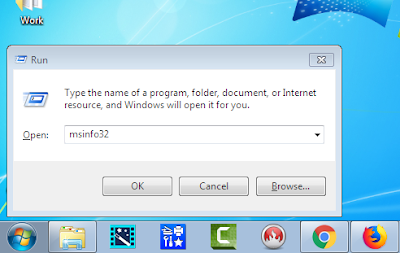
Now your
type in Commend "msinfo32" Box and enter the command motherboard information

Motherboard information: manufacturer and product and serial number

Method Two: Second way Find With See on Model Number Mother Board (Only In Some desktops Systems Available)
You need power off computer system next open CPU cabinet cover you show and find mother board you find where is mother board model number example INTEL g31, g41, 845,945,965 or updated version look find area some board beside graphic slot...


![How to make a pendrive bootable for windows 7 [Bangla] Ma Studio Sandwip || Technolgy Will Be Ours](https://lh3.googleusercontent.com/blogger_img_proxy/AEn0k_t415qLGAARgDbkEWlkLUhRShPSszih65rwR3Kf_bdw3gbbb_O6xCOlyoFrx27s-bsCyRmuRv8LSMoDkZGX4e90Q_Pwfn14UZn1Pe48wsGrHeU)


